How to Transition Your Office Team to Remote Work Without Disrupting Your Business
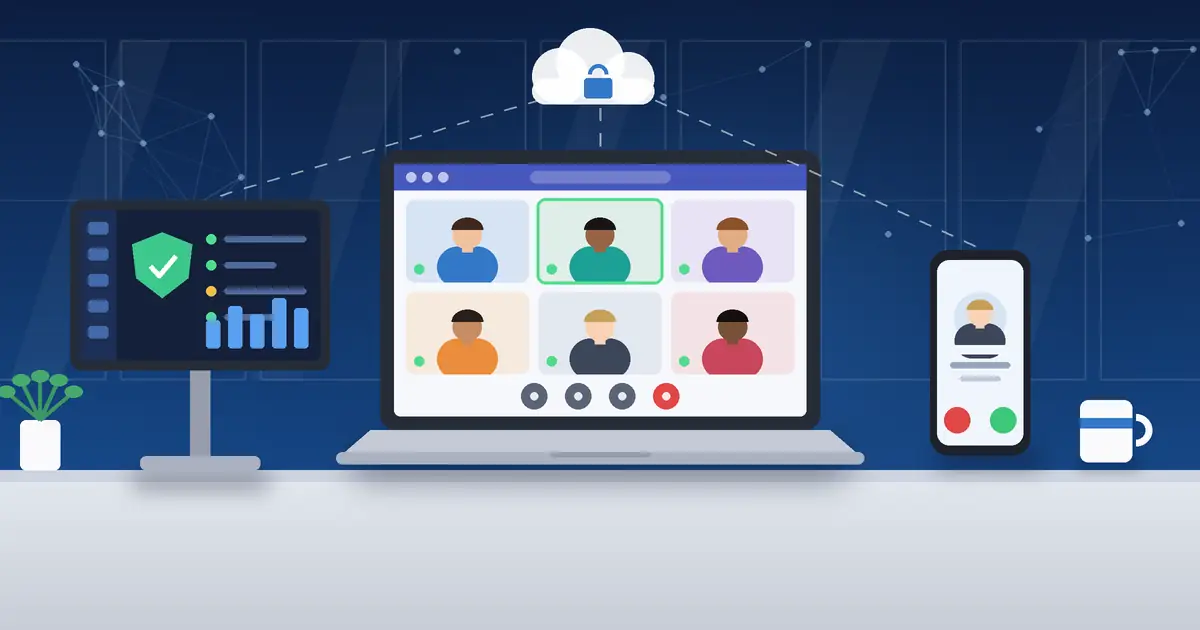
Moving an office team to remote or hybrid work used to mean a scramble: laptops handed out on a Friday, a shared password on a sticky note, and a phone system that only rang at an empty front desk. It does not have to be that way. With a clear plan, a small business can move its existing team out of the office while keeping customers served, data protected, and every computer managed from one place. This guide walks through what an office to remote work transition really involves, what you can keep, what usually needs to change, and how to do it in stages so the business keeps running.
You Probably Don’t Need to Start Over
Many owners assume remote work means buying new computers for everyone, changing the company phone number, and moving every program to the cloud. In most small offices, none of that is required. Reasonably current desktops and laptops can often be reused. Existing business numbers can usually be moved to a cloud phone system. Some applications work well in the cloud, while others are better left where they are and accessed securely from home.
The goal is not to rebuild your IT. It is to make what you already have work safely from more places, and to replace only what genuinely needs replacing.
Step One: Understand What You Have Today
Every successful transition starts with an inventory. Before anyone works from home, you should know:
- Which computers each employee uses, how old they are, and whether they run a supported version of Windows or macOS.
- Where company files live: a server in a closet, a NAS device, individual desktops, or a cloud service.
- Which applications the team relies on, such as accounting, CRM, scheduling, or industry-specific software, and how each one is licensed.
- How the phone system works, who answers which calls, and which numbers customers dial.
- How employees sign in today, and whether multi-factor authentication is already in place.
For many offices, the computers are fine, but files and one or two legacy applications need the most planning.
Preparing Computers and Devices for Remote Work
Reuse Existing Equipment Where It Makes Sense
Laptops that are still supported and in good condition can usually be cleaned up, updated, and prepared for home use. Office desktops can move home too, or stay in the office as a machine employees reach remotely. Devices that are old, out of support, or too slow are better replaced now than troubleshot later.
Deploy New Devices Without Hands-On Setup
When new laptops are needed, tools such as Windows Autopilot and Microsoft Intune let IT ship a computer directly to an employee. The employee signs in with a work account, and the device installs company applications, settings, and security policies automatically.
Remote Employee Device Management
Once computers leave the building, they still need care. Every device should have endpoint protection, automatic operating system and software patching, health monitoring, and a remote support tool so a technician can help an employee without a site visit. Centralized device management means IT can see which machines are behind on updates or showing warning signs, wherever they are.
Employee Accounts, Identity, and Access
In a remote environment, an employee’s account becomes their key to the business. Whether you use Microsoft 365 or Google Workspace, accounts should be set up consistently:
- Multi-factor authentication (MFA) on every account, preferably with an authenticator app rather than text messages.
- Role-based permissions, so people can reach what their job requires and not everything else.
- A standard onboarding process that creates the account, assigns licenses, adds the person to the right groups, and prepares a device.
- A standard offboarding process that disables access, recovers data and equipment, and transfers mailboxes or files on the employee’s last day.
Offboarding is easy to overlook. When people work from home, a forgotten account or an unreturned laptop is a bigger risk than when everyone shared one office.
Business Phone Systems for Remote Teams
Customers should not be able to tell your team has left the office. A cloud VoIP phone system makes that possible. In most cases your existing business numbers can be ported to the new provider, so customers keep dialing the same numbers. Employees then make and take calls from a desktop app, a mobile app on their phone, or a desk phone at home, all showing the business caller ID.
A well-configured system includes an auto attendant (“press 1 for sales”), ring groups that ring several people at once, call routing rules for business hours and after hours, and voicemail delivered to email. For businesses already using Microsoft 365, Microsoft Teams Phone is another option that puts calling inside the same app used for chat and meetings. Number porting takes planning and can take days or weeks, so it should be scheduled early rather than left for the last minute.
Secure Access to Company Files
For many offices, files are the heart of the transition. Moving shared folders to SharePoint, Microsoft Teams, and OneDrive (or to Google shared drives) lets employees open, edit, and share documents from anywhere, with permissions controlled centrally. Files sync to the computer, so people can keep working through a brief internet outage.
Not every file needs to move. Large archives, specialized data, or folders tied to a legacy application may stay on an existing file server, reached through a secure VPN or remote desktop connection. Wherever files live, they need a dependable business backup. Cloud services keep your files available, but they are not a replacement for an independent backup that can restore deleted, encrypted, or overwritten data.
Making Business Applications Work From Anywhere
Applications need a compatibility assessment, one at a time. Cloud-based CRM and accounting platforms usually just need a browser and a secure sign-in. Desktop accounting software and line-of-business applications are more varied. Depending on the software and its license, the right answer might be a vendor-hosted version, a secure remote desktop to a computer or server in the office, a cloud desktop such as Azure Virtual Desktop, or a VPN connection back to the office.
Some older programs simply do not perform well over a home internet connection, and some vendors restrict how their software can be hosted. That is why each application should be tested with real users before the move. One firm rule applies in every case: remote desktop access should never be exposed directly to the internet. It belongs behind a VPN or a secure gateway with MFA.
Cybersecurity for a Distributed Team
When employees work from home networks, coffee shops, and hotels, security has to travel with the device and the account rather than depend on the office firewall. A practical baseline for a small business includes:
- Microsoft Intune to enroll devices and enforce encryption, screen locks, and minimum operating system versions.
- Microsoft Defender or another managed endpoint protection product to detect and respond to threats.
- Identity protection, including MFA, Conditional Access rules, and alerts for unusual sign-ins.
- Secure remote access to any systems that stay in the office.
- Clear security policies and short training on phishing, home Wi-Fi, and reporting problems.
Microsoft 365 Business Premium includes Intune and Microsoft Defender for Business, which makes it a common fit for small teams. The right mix depends on your industry, your data, and any compliance requirements, which is where layered cybersecurity services come in.
Collaboration That Feels Like the Office
Microsoft Teams brings chat, video meetings, and shared documents into one place. Organizing Teams by department or project, setting expectations for when to chat versus call, and keeping documents in shared channels instead of email attachments helps a remote team stay coordinated. Businesses on Google Workspace can achieve the same with Google Chat, Meet, and shared drives.
How MRTECH Manages an Office to Remote Work Transition
MRTECH Computer Support® works as your IT partner from planning through day-to-day support:
- Assess your existing computers, files, applications, phone system, and security.
- Design a practical remote or hybrid plan that keeps what works and replaces only what needs it.
- Configure and secure employee devices with endpoint protection, patching, and management.
- Set up cloud accounts, phone systems, file access, and applications.
- Test the environment with a small group before the whole team moves.
- Support your team afterward through ongoing Managed IT Services.
Illustrative Scenario: A 12-Person Office Moves to Hybrid Work
This is a hypothetical example for illustration, not a real client case study.
Picture a 12-person professional services office with a file server in a back room, desktop accounting software, a traditional phone system, and email already on Microsoft 365. The owner wants staff to work from home three days a week.
An assessment finds that eight laptops are current enough to keep and four aging desktops should be replaced. The plan moves everyday shared folders to SharePoint and Teams, while the accounting data stays on an office server that employees reach through a secure remote desktop gateway with MFA. The main business number and direct lines are ported to a cloud phone system with an auto attendant and a ring group for the front desk. Every laptop is enrolled in Intune with Defender, and new laptops ship straight to employees’ homes.
Two employees test the full setup for a week. A slow printer driver and a missing folder permission are fixed before the rest of the team moves in small groups. Afterward, devices are monitored centrally, and employees have one place to call for help whether they are at home or in the office.
Remote IT Support for Small Businesses After the Move
The transition is only the beginning. A remote team still needs someone watching device health, applying updates, troubleshooting problems, administering software and licenses, onboarding new hires, and closing accounts when people leave. With centralized monitoring and remote support, your business can keep operating with consistent IT management even when every employee works from a different location.
Planning to Move Your Office Team to Remote Work?
MRTECH Computer Support® can help evaluate your existing computers, business applications, cloud services, phone systems, and cybersecurity requirements. Request a free 30-Minute Business Technology Risk Review with an MRTECH expert, conducted by phone, Microsoft Teams, or remote session, depending on availability.
Frequently Asked Questions
Do we need to buy new computers to go remote?
Not necessarily. Supported laptops and desktops in good condition can often be prepared for remote use. Devices that are out of support or too slow for daily work are usually worth replacing as part of the transition.
Can we keep our existing business phone numbers?
In most cases, yes. Business numbers can usually be ported to a cloud VoIP system so customers dial the same numbers while employees answer from a computer, mobile app, or desk phone. Porting timelines vary by carrier, so plan for it early.
Do all of our applications have to move to the cloud?
No. Some applications work best in the cloud, while others can stay on an office computer or server and be reached through a secure remote desktop or VPN. Each application should be checked for compatibility and licensing before the move.
How do we keep remote employees’ devices secure?
Combine device management (such as Microsoft Intune), managed endpoint protection, automatic patching, MFA on every account, and secure access to any office systems. Centralized monitoring lets IT spot and fix problems wherever the device is.
How long does an office to remote work transition take?
It depends on team size, the number of applications, and whether files or phone numbers are moving. Many small offices complete the work in phases over several weeks, testing with a small group first so daily operations are not interrupted.
Not sure where your business stands on IT risk?
Get a free, no-pressure look at your technology and security posture.
Get Your Free IT Security Assessment